Multi-select lets you select several products in a page's primary product list and apply batch operations to the whole selection at once. With one click, you can pin, unpin, block, or unblock every selected product, or drag your selected pinned products together to a new position.
Select multiple products
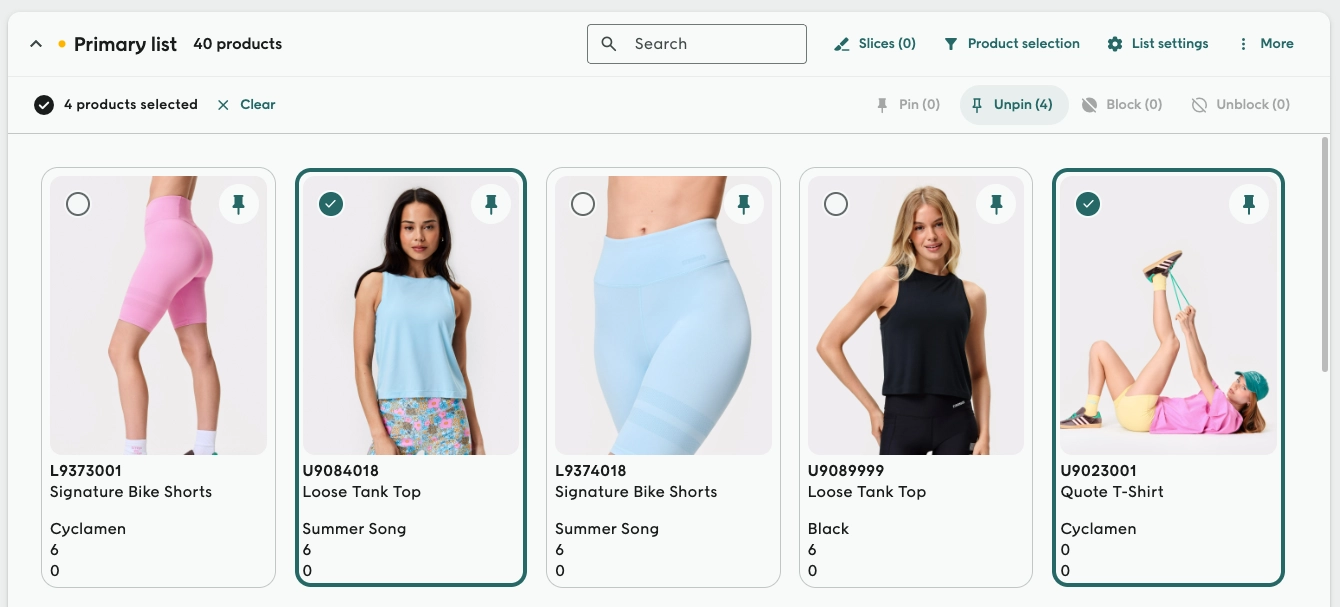
Click a product card in the primary product list to select it, then keep clicking to add more. A toolbar appears above the list showing how many products are selected, with Clear to start over.
Selection is kept within one area at a time, so products outside slices are selected together, and products inside a slice are selected together with the other products in that slice.
Pin or block them all at once
With products selected, use the toolbar to Pin, Unpin, Block, or Unblock everything in the selection in a single click. Each button shows how many of the selected products it applies to, so you always know what will happen before you click.
Drag several pinned products together
Pinned products can already be reordered by dragging. Now, if you start dragging a pinned product that is part of your selection, all selected pinned products move with it. The drag preview shows how many products you are moving, and they land together in the new position.
How to use it
- Open a page under Experience → Pages and start editing.
- Click products in the primary product list to select them.
- Use Pin, Unpin, Block, or Unblock in the selection toolbar, or drag one of the selected pinned products to reorder them all.
- Save and publish as usual.